Build a scene
A scene is the USD stage that becomes the live world. Build is the perspective for composing it: placing assemblies, adjusting transforms, inspecting prims, and saving the result into the authored stage. The simulation keeps running while you work, so a change can be observed immediately.
This tutorial assumes that you have a Twin with a default scene. If you do not, complete Create a Twin first.
Open the scene in Build
- Open the Twin. Its
default_sceneis mounted into the viewport. - Switch to Build from the title bar or View → Perspectives.
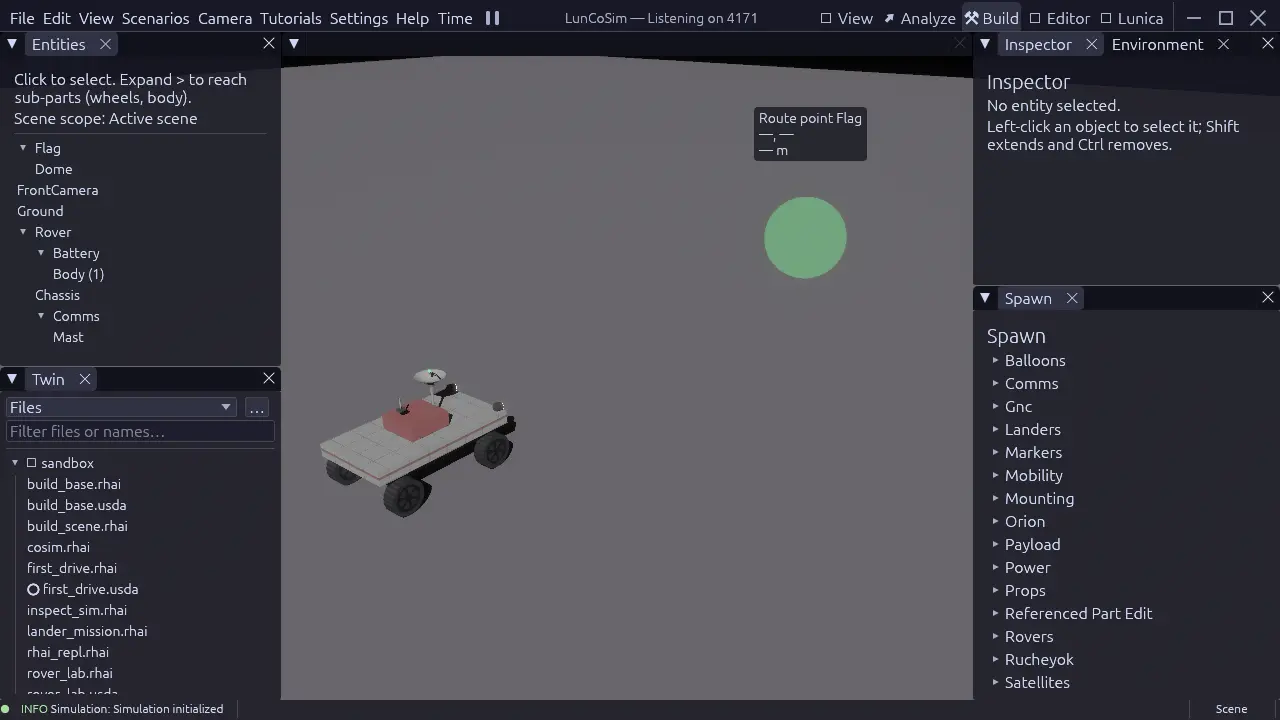
- Confirm that the Entities tree and the Twin file browser are visible on the left, and Inspector, Environment, and Spawn are on the right.
The Entities tree shows the live runtime objects. The Twin browser shows the authored files. They are related but not identical: an entity can be generated at runtime, and a file can exist in the Twin without being part of the active scene.
Place an assembly
- Open the Spawn palette.
- Choose an assembly category, such as a rover, a habitat, or a ground prop.
- Click a placement point in the viewport, or drag the assembly into the scene.
- The new object appears in Entities and in the viewport.
A spawned assembly is a reference into the scene, not a copy of the source file. The scene stores the placement and any overrides; the reusable asset stays in the installed library or the Twin.
Adjust the transform
Select the object in Entities or click it in the viewport. The Inspector shows the selected prim's properties. Use the transform gizmo or the Inspector fields to set position, rotation, and scale.
The scene placement owns the initial heading. The reusable asset owns its local geometry and its canonical frame. Do not duplicate a heading in the asset, a variant, and a wrapper layer; keep one authoritative placement and let the vehicle controller own later changes.
A prim that can be rotated must declare the rotation op in xformOpOrder. An
attribute that is not listed in the order is inert, even if it has a value:
double3 xformOp:translate = (4, 0, 8)
float3 xformOp:rotateXYZ = (0, 35, 0)
uniform token[] xformOpOrder = ["xformOp:translate", "xformOp:rotateXYZ"]
Inspect the prim
The Inspector is a view over the authored prim, not a separate settings store. Editing a value authors a typed USD operation through the document owner. The change appears in the Change History journal when the document is open in Editor.
Useful checks before saving:
| Check | Why |
|---|---|
The prim has the expected schema, such as UsdPhysics.RigidBodyAPI |
A body without the schema will not move |
| A movable child has a joint | A nested body without a joint is reported by the scene linter |
| Mass and collision geometry are present | A collider without mass or a body without a collider behaves unexpectedly |
The transform op is listed in xformOpOrder |
An unlisted op is ignored |
| The asset reference resolves | A missing reference composes as an empty prim |
Scene-wide environment
Environment owns scene-wide settings such as lighting and the environment profile. Use it when the question is about the whole scene rather than one prim: the sun, the sky, the ambient conditions, or the terrain context.
Do not put a per-object light or a per-object material override in the environment panel. Those are prim properties and belong on the object.
Save the scene
Use File → Save or Ctrl+S to save the active scene document. The save writes the authored USD stage through the document journal; it does not rewrite unrelated files.
If the scene was opened as a lesson or an installed example, Save as Twin… creates a project copy before you edit it. Saving into the installed library is not the intended workflow.
Compose, do not duplicate
A scene can reference a reusable rover and place two instances with different transforms:
#usda 1.0
(
    defaultPrim = "PracticeYard"
    upAxis = "Y"
    metersPerUnit = 1
)

def Xform "PracticeYard"
{
    def Xform "RoverA" (
        prepend references = @lunco://vessels/rovers/skid_rover.usda@
    )
    {
        double3 xformOp:translate = (0, 0, 0)
        uniform token[] xformOpOrder = ["xformOp:translate"]
    }

    def Xform "RoverB" (
        prepend references = @lunco://vessels/rovers/skid_rover.usda@
    )
    {
        double3 xformOp:translate = (8, 0, 4)
        uniform token[] xformOpOrder = ["xformOp:translate"]
    }
}
The two rovers share the same source asset. A change to the asset appears in both placements unless the scene overrides the changed property. This is the intended way to keep a scene maintainable.
Common mistakes
| Symptom | Cause | Fix |
|---|---|---|
| The object is visible but does not move | No rigid body or no collider | Add the physics schemas and a collider |
| A mounted part falls away on the first step | Nested body without a joint | Add the joint or remove the nested body |
| The object is in the wrong place | Transform op not listed in xformOpOrder |
Add the op to the order |
| The scene opens empty | default_scene is missing or wrong |
Fix the manifest and reopen the Twin |
| The change disappeared | The scene was not saved | Save the document; check Change History |
| A referenced asset is missing | The asset address does not resolve | Check lunco:// or twin:// and the asset cache |
Next steps
Continue with Add a Modelica model to give the scene continuous behavior, or Script a mission to add a discrete policy. For the full USD contract, read USD.